Everything you need to know about this tool and how to get the most out of it.
What is Add Text Overlay to Image Online Free?
The Add Text to Image tool lets you overlay custom text on any image directly in your browser with professional-grade control. You can customize the font family from a selection of web-safe typefaces, adjust the text size from 12 to 200 pixels, choose any color for the text, add a contrasting stroke outline, control the stroke width, and position your text anywhere on the image using percentage-based coordinates. Whether you're creating viral memes, adding watermarks to protect your photography, writing captions for social media, or annotating diagrams, this tool gives you complete creative control without requiring expensive design software.
How Add Text Overlay to Image Online Free Works
Upload an image by clicking the upload area or dragging and dropping your file directly onto the tool. The image loads into your browser's memory and displays in the canvas preview. Enter your text in the text field, which immediately appears on the image preview. Use the font dropdown to select from Arial, Times New Roman, Georgia, Verdana, Courier New, Impact, and Comic Sans MS. Adjust the font size with the slider to make your text as prominent or subtle as needed. Choose your text color and optional stroke color using the color pickers, then fine-tune the stroke width. Use the horizontal and vertical position sliders to place your text exactly where you want it on the image. The preview updates in real-time as you adjust every setting, letting you see exactly how your final image will look. Once satisfied, click the Download button to save your image with the text overlay as a PNG file.
Why Use Add Text Overlay to Image Online Free?
Adding text overlays to images is essential for creating engaging social media content, protecting your images with visible watermarks, creating eye-catching promotional graphics, and annotating photographs or diagrams. This browser-based tool requires no software installation—no need to learn Photoshop or expensive design tools. All processing happens locally on your device, ensuring complete privacy for your images. The tool is completely free to use, works instantly, and produces high-quality PNG output that preserves image clarity and text readability.
Tips & Best Practices
- 1Use Impact font for classic meme-style text that stands out boldly and grabs viewer attention immediately
- 2Add a dark stroke (2-4px) to white text for excellent readability on any background color or pattern
- 3Use the position sliders to fine-tune text placement for perfect composition and balance on your image
- 4Download and re-upload to add multiple text layers for more complex and creative designs easily
- 5Combine white text with black stroke for maximum contrast and professional appearance in every composition
Key Text Overlay Features
- Font Options: Choose from popular, highly readable web-safe fonts like Arial, Impact, and Georgia to set the right tone.
- Colour Picker: Select any color for your text and outline using an intuitive hex color picker to match your brand.
- Opacity Control: Adjust the transparency of your text overlay, perfect for creating subtle watermarks that protect your images without distracting from them.
- Position Control: Precisely place your text anywhere on the image using percentage-based X and Y coordinate sliders.
- Export Formats: The tool automatically outputs a high-quality PNG to ensure your text stays crisp and clean.
Common Use Cases & Examples
Social Media Captions
Add stylish, modern captions to your photos before uploading them to Instagram, Twitter, or LinkedIn. Using clean fonts and subtle positioning helps convey your message instantly while maintaining the aesthetic appeal of your original photograph.

Watermarking Photography
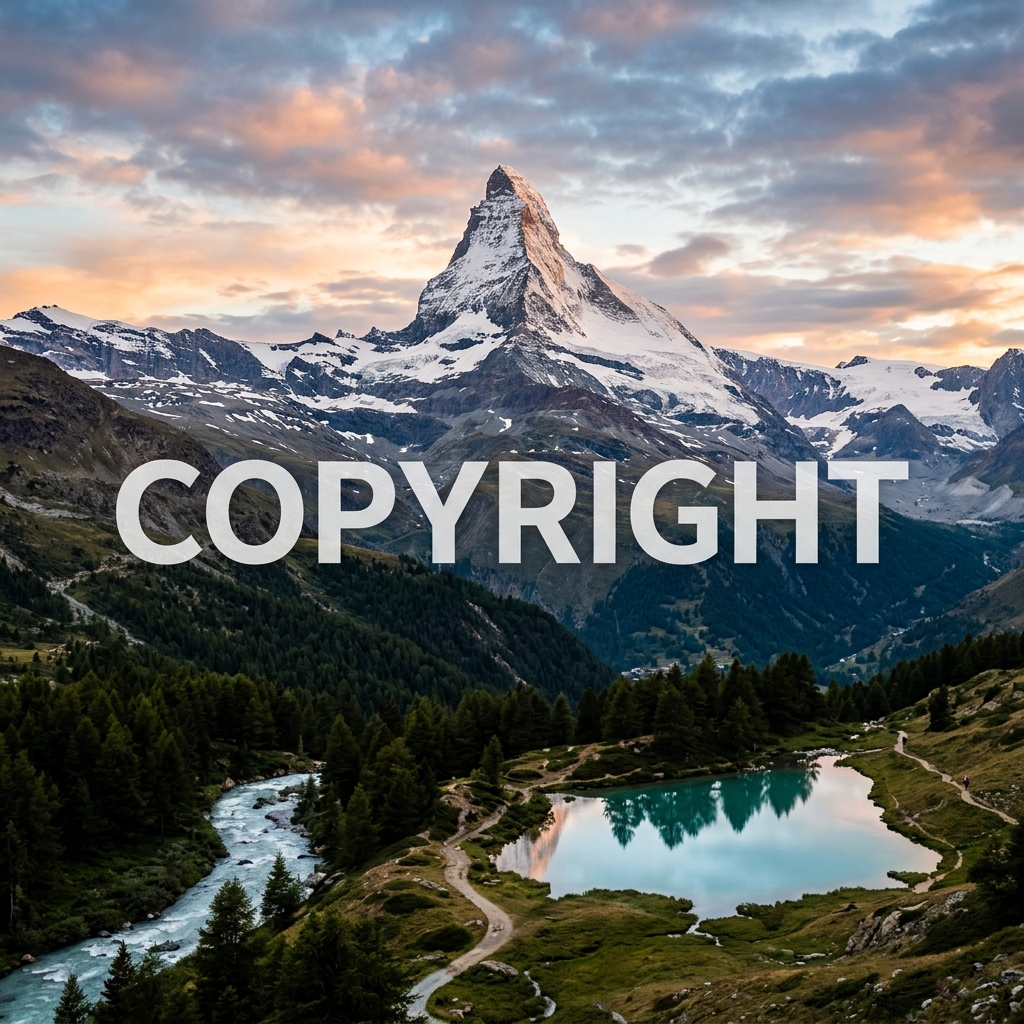
Protect your intellectual property by applying a distinct text watermark to your images. Using a semi-transparent or carefully colored overlay in the center or corner ensures your work is attributed to you if it's shared across the web.
Meme Creation
Quickly create viral memes using the classic 'Impact' font format. With the ability to easily add a thick black stroke outline to bold white text, your memes will be perfectly formatted and easy to read on any device.

Product Labelling
Enhance your e-commerce product photos by adding quick labels, dimensions, or feature callouts directly onto the image. This visual communication helps customers understand your product immediately, reducing questions and increasing conversion rates.


